Top 5 Modern Linux Command Line Tools I Finally Started Using

I’ve been using Linux for over 22 years now, and like most long-time users, I’ve built up a lot of habits.
I love terminals. I genuinely believe they are one of the most efficient ways to work with an operating system.
And yet, out of pure habit, I never really reconsidered some of the classic Unix tools I’ve been using for decades.
I knew alternatives existed. Sometimes I was even forced to switch — ip addr show instead of ifconfig, ss instead of netstat. But just because I’m used to a command doesn’t mean it’s the best tool available today.
Recently, while harmonizing my Arch setup across machines, I decided to take that idea seriously. If I was modernizing my desktop stack, why not modernize my terminal habits too?
So I forced myself to try modern replacements for the classic tools I’ve always used.
This is my list.
cat -> bat
cat is one of those tools you take for granted.
It’s so simple you barely notice it.
Want to peek into a file? cat.
Copy some text out of it? cat.
See if you changed that config file correctly? cat.
Why would anyone want anything more than just dumping a file to the terminal?
At least, that’s what I thought.
Trying to understand what’s inside a long config file?
vim.
Wait — what?
Yes, vim. It opens instantly, gives me syntax highlighting, search capabilities, and proper navigation. Sure, it feels like overkill just to look at a file — but it works.
And that’s exactly where bat shines.
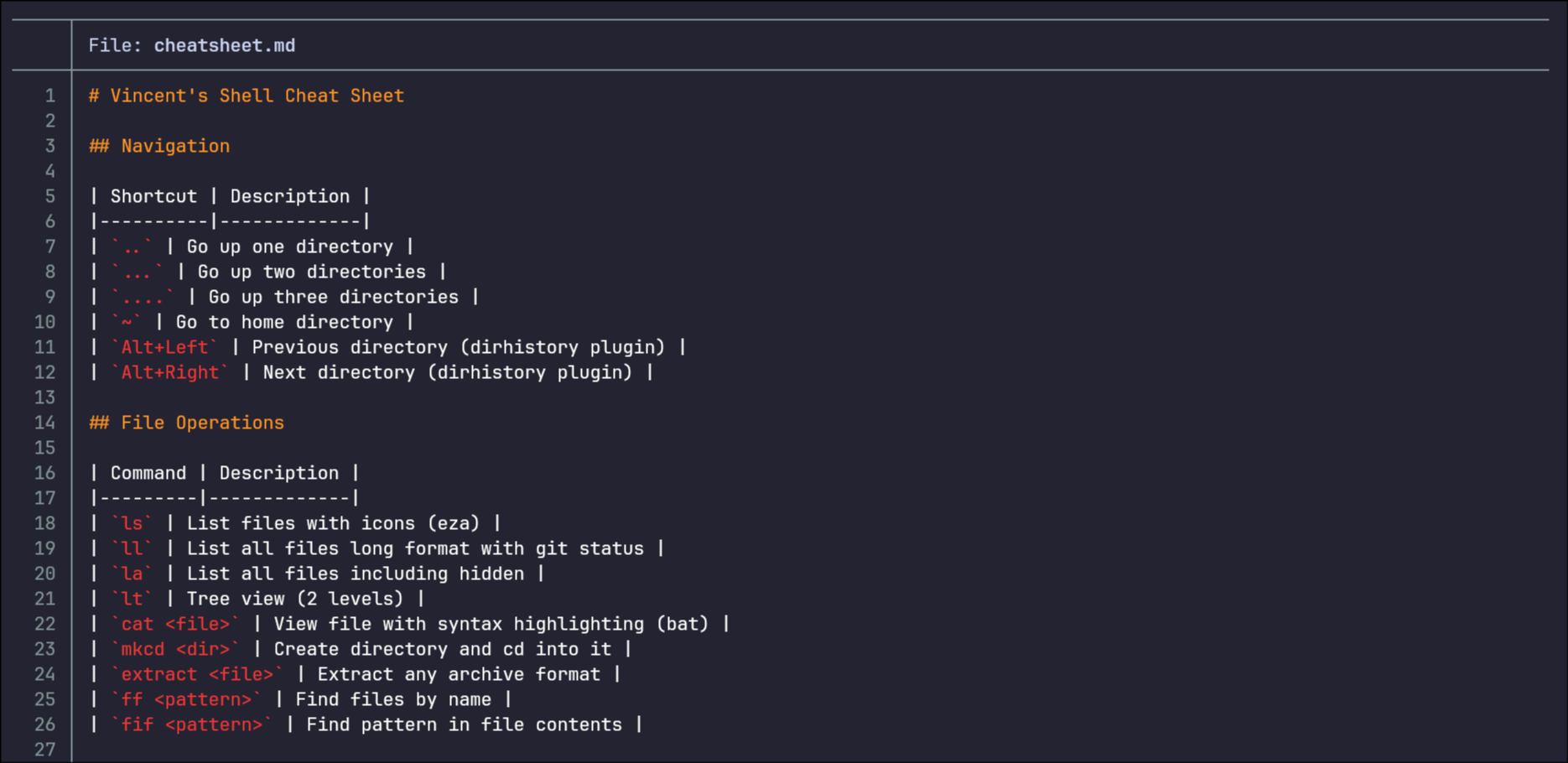
bat feels like a lightweight “vim for viewing.” Syntax highlighting. Line numbers. Clean formatting. No editing mode.
For me, it fills the gap between cat and vim.
And I love it.
And if I really just want raw, plain text?
bat -p
top -> btop
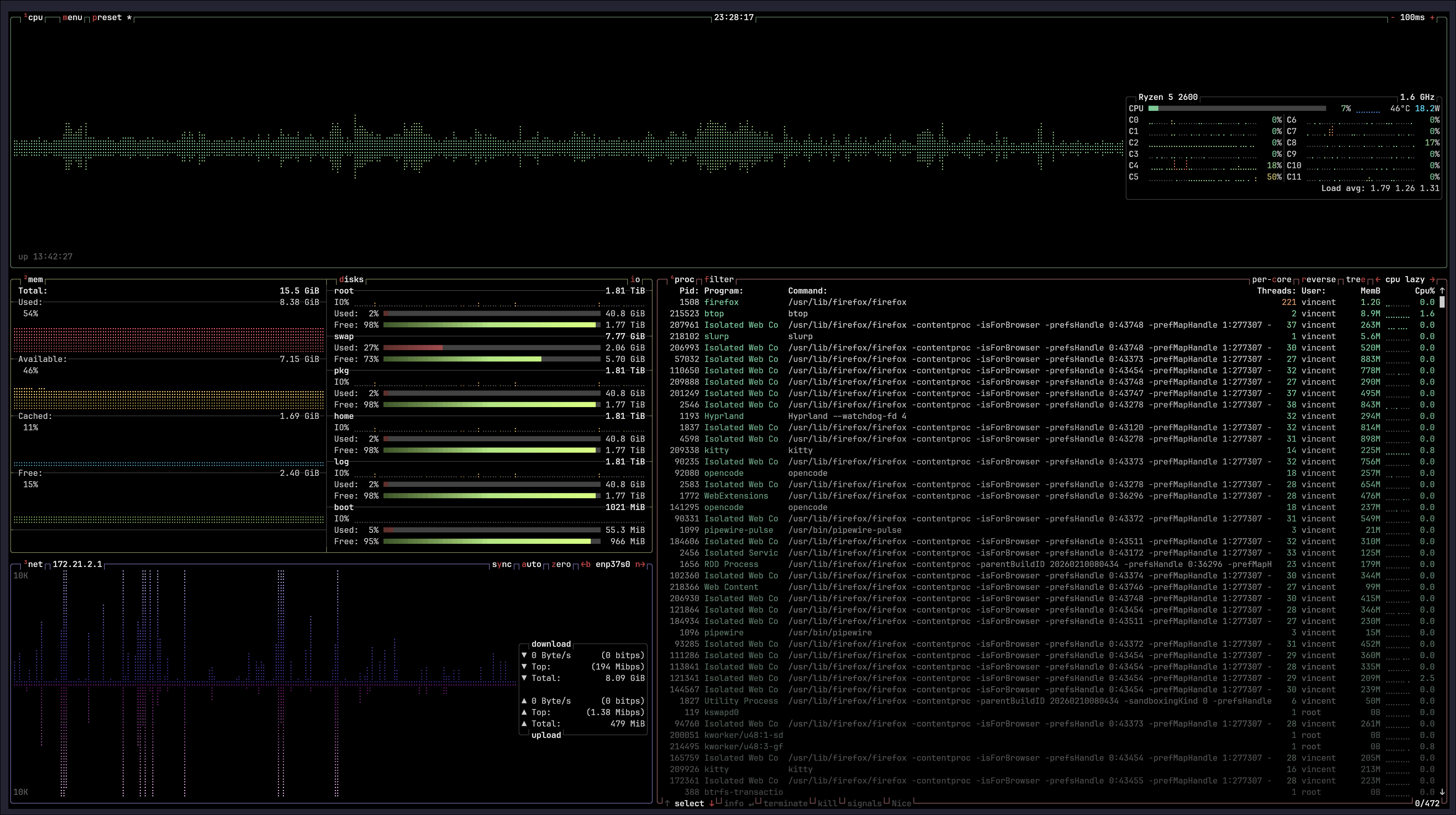
Look at that image.
Isn’t it beautiful?
You almost forget it’s a terminal.
And yet it is.
It shows you everything you need to know about your system’s performance. CPU usage. Memory. Disk I/O. Network activity. All in one clean, readable interface.
You can instantly pinpoint problems.
See what’s eating your memory (looking at you, Firefox — although maybe I should close a few tabs).
I should have discovered btop a lot sooner.
find -> fd

Well… I have to admit something.
This section is a bit of a lie.
I never really used find.
I used locate.
Or more accurately: I ran updatedb, went for some coffee, came back… and then used locate.
And it works great.
If you have time.
Imagine my surprise when I rediscovered find — and then fd.
I always knew find existed, but I was stuck in my ways. The syntax felt clunky, and locate was “good enough.”
Now?
If I need to find a file, I just fd it.
No indexing ritual.
No coffee break required.
And yes — I drink less coffee now.
Win-win.
ls-> eza
Nope.
I am never, ever going to retrain myself to type eza instead of ls.
Not going to happen.
So I didn’t.
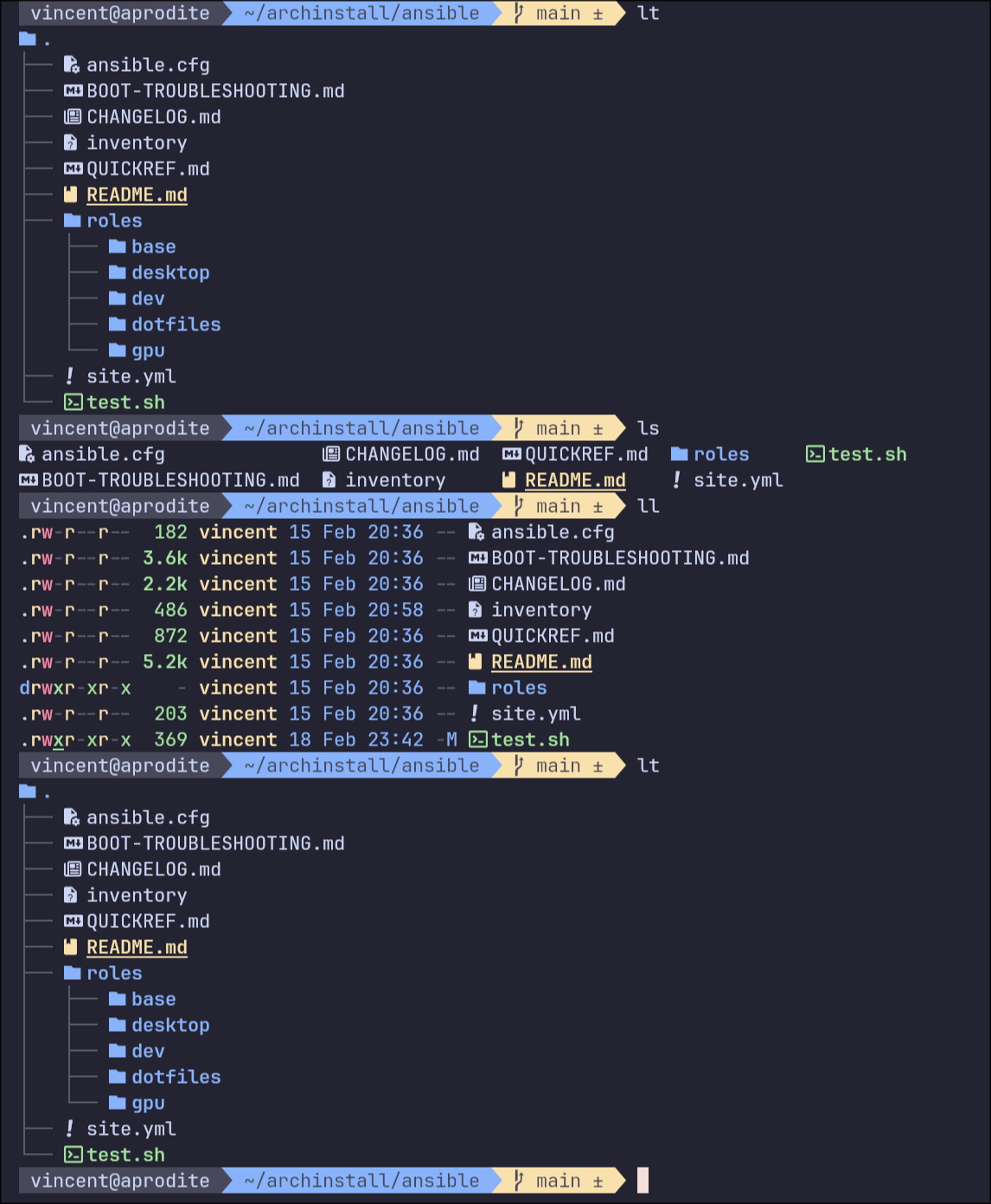
I just aliased ls:
alias ls='eza --icons'
And ll:
alias ll='eza -la --icons --git'
Same old muscle memory.
But now?
Pretty icons.
Clean colors.
Git status right there in the listing.
Love it.
du -> ncdu
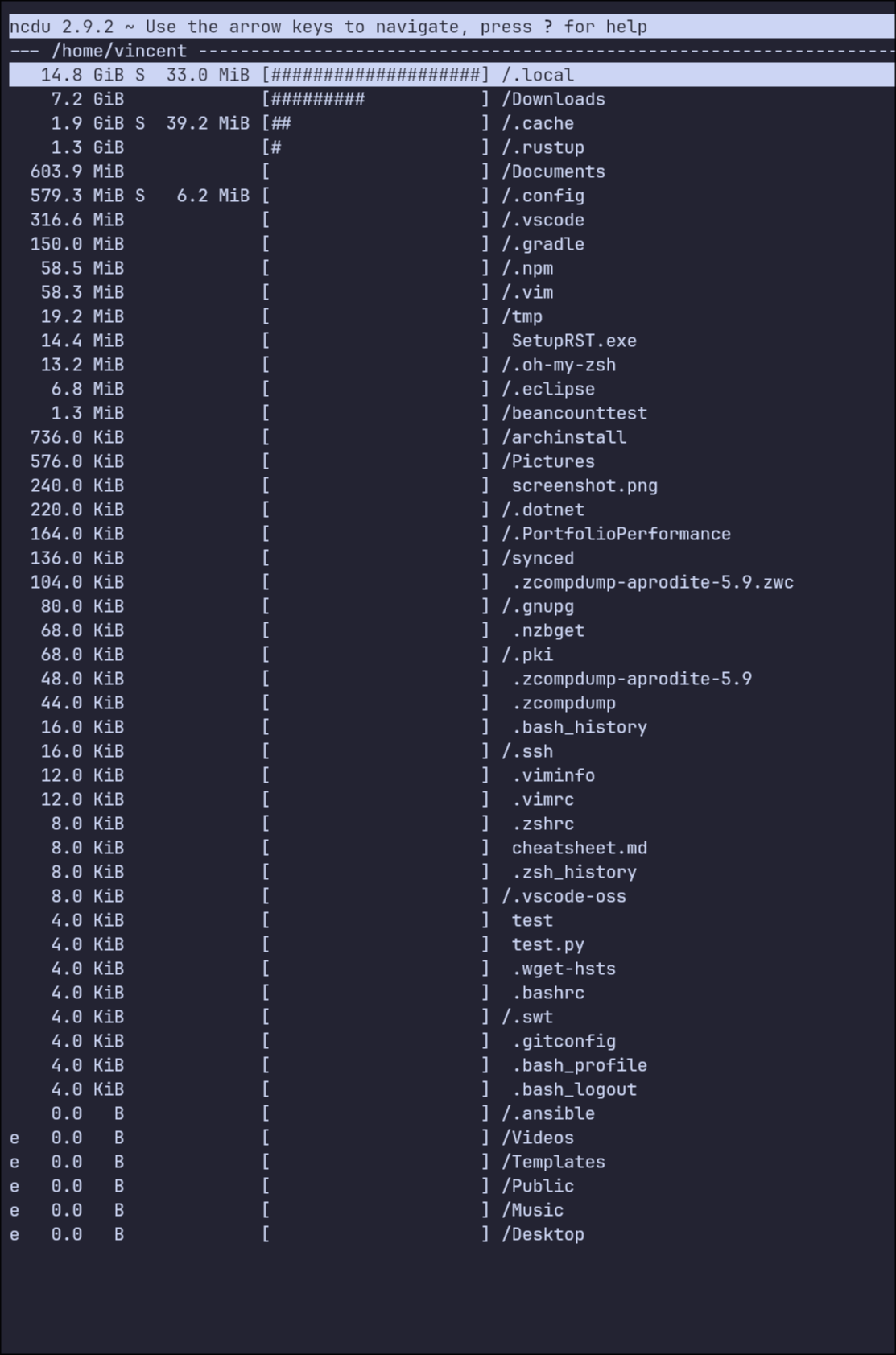
Want to know how much disk space you have?
Easy.
df -h
Wait… less free space than you thought?
Don’t worry. We’ll find it.
du
Oh.
That’s… not very readable.
Fine.
du -hs
Okay. Now I know the total.
du -hs *
Sure.
And then for a subdirectory.
And another one.
And another one.
This is getting old.
That’s where ncdu fixes everything.
It’s interactive.
You can drill down.
Go back up.
Sort instantly.
Actually understand what’s eating your precious storage.
And it even has graphs.
Ooeeeh. Fancy!